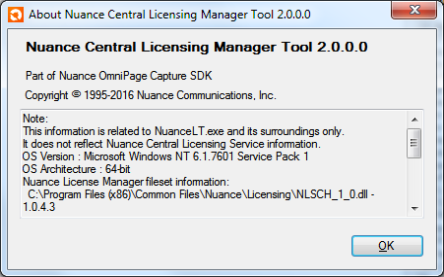
Nuance Central Licensing Tool
NCLS handles Developer and Page Based license-related queries and tasks and communicates with NCLT through TCP/IP ports for Page and time restricted Licensing schemes. It runs as a Windows service and Microsoft .NET Framework 4 is required for its proper operation. NCLS accepts remote connections and can be located in the datacenter or in the cloud.
NCLT is basically the user interface for the NCLS. It displays the product name and version and a list of the features included with the license. It has License type dropdown for enabling selection between OEM, Fixed Volume and Page Based license types.
By using NCLT, you have the option to obtain and activate the license on a machine with or without an internet connection. However, it is strongly recommended that your developer machine has internet access. To ensure that licenses can be transported from one machine to another, a regular validation is required against the Nuance Activation Server. In case you do not have internet access on the machine, this validation cannot be performed.
You can manage your licenses via the NCLT.

The main window shows the following information about licenses:
- Product Name: name of the licensed product
- Version: version of licensed product
- License type: product license type
- Error log: error log status
- Deployment ID / Hardware Fingerprint: displays deployment ID in case of Page Based licenses, and Hardware Fingerprint in case of Fixed Volume licenses; shows nothing in case of OEM licenses
- Features pane: displays licensed product features
For page based licenses that have either the page pack or page per month feature enabled, the NCLT window displays license related details:
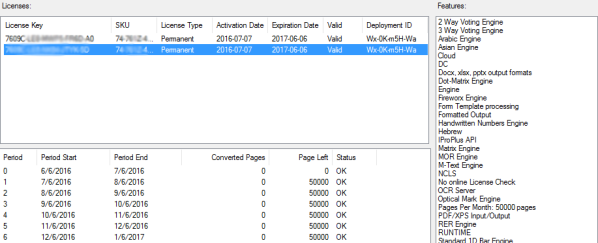
The following menu items are available in the tool:
File menu
- Load...: load license files or license packages
- Download...: download license file
- Prepare Licenses for Manual Activation...: to activate licenses if no internet access is available
- Prepare OEM Licenses for Distribution...:
- Prepare Licenses for Moving...export license files in
.lcxp pack
- Exit
Functions menu
- Activate: activate license file; only active if there is internet access
- View Report: view report file
- View Log...: view log file
- Clear Log: clear log file
- Remove: remove license file
Tools menu
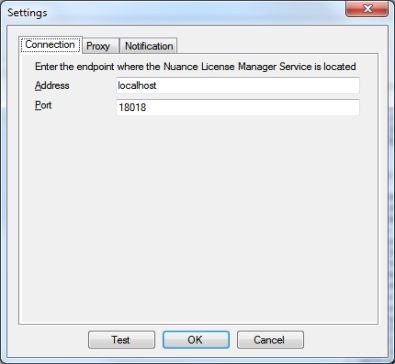
- Configuration...
- Connection tab: specify Address and Port for the endpoint where the Nuance License Manager Service is located
- Proxy tab: specify proxy settings; i.e. the proxy between the activation server and the activating service. This setting can only be modified if NCLT is run with elevated privileges.

- Notification tab: specify notification email settings
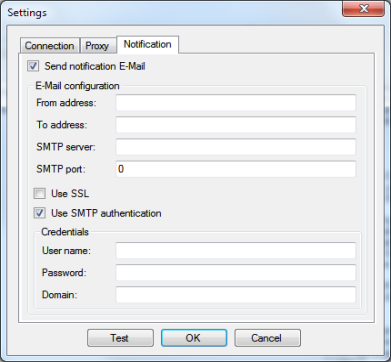
- Test: click the Test button on each tab to confirm proper settings
Help menu
- About: displays system information and copyright information about NCLM